
How I got Groovy Gorilla (Ubuntu 20.10) on Raspberry Pi 400
Raspberry Pi 400 is an awesome Raspberry Pi 4 device which comes packaged in a keyboard. Just hook it up to monitors and you got a working computer. Raspberry Pi 400 comes with a Raspberry Pi OS preinstalled, but it has it's quirks.

- Citrix could not use both monitors. Though I spent decent number of hours to attempt to use different desktop manager, it just didn't work.
- Getting sound output to a Bluetooth headset was pain in the neck. Still didn't work reliably all the time.
Now, coming to the point, installing Ubuntu on Raspberry Pi.
Load Ubuntu for Pi hardware on micro SD card
I used another Ubuntu laptop with SD card reader to flash Ubuntu on micro SD card. Though one could use a SD card reader though a USB port on Raspberry Pi, I choose to use a ready to go laptop. Here is how I loaded Ubuntu to SD card,
- Inserted micro SD card in a SD card adapter and stuck that in a SD card slot on a laptop
-
Installed snap image of rpi-imager using sudo snap install rpi-imager

-
Started rpi-imager from terminal
-
Clicked CHOOSE OS button and then Other general purpose OS > Ubuntu
> Ubuntu Desktop 20.10 (RPi 4/400)
- After writing it took another 5 minutes to complete verification
- Once process completed I am asked to remove the SD card
- That is it my SD card is ready to be booted on Pi


Install Ubuntu on Raspberry Pi
Installing Ubuntu on Pi is pretty similar to installing on any other
hardware. If you are not familiar with installation process read along.
- Inserted the micro SD card with Ubuntu on it in the micro SD card slot on Pi 400 and powered it on
-
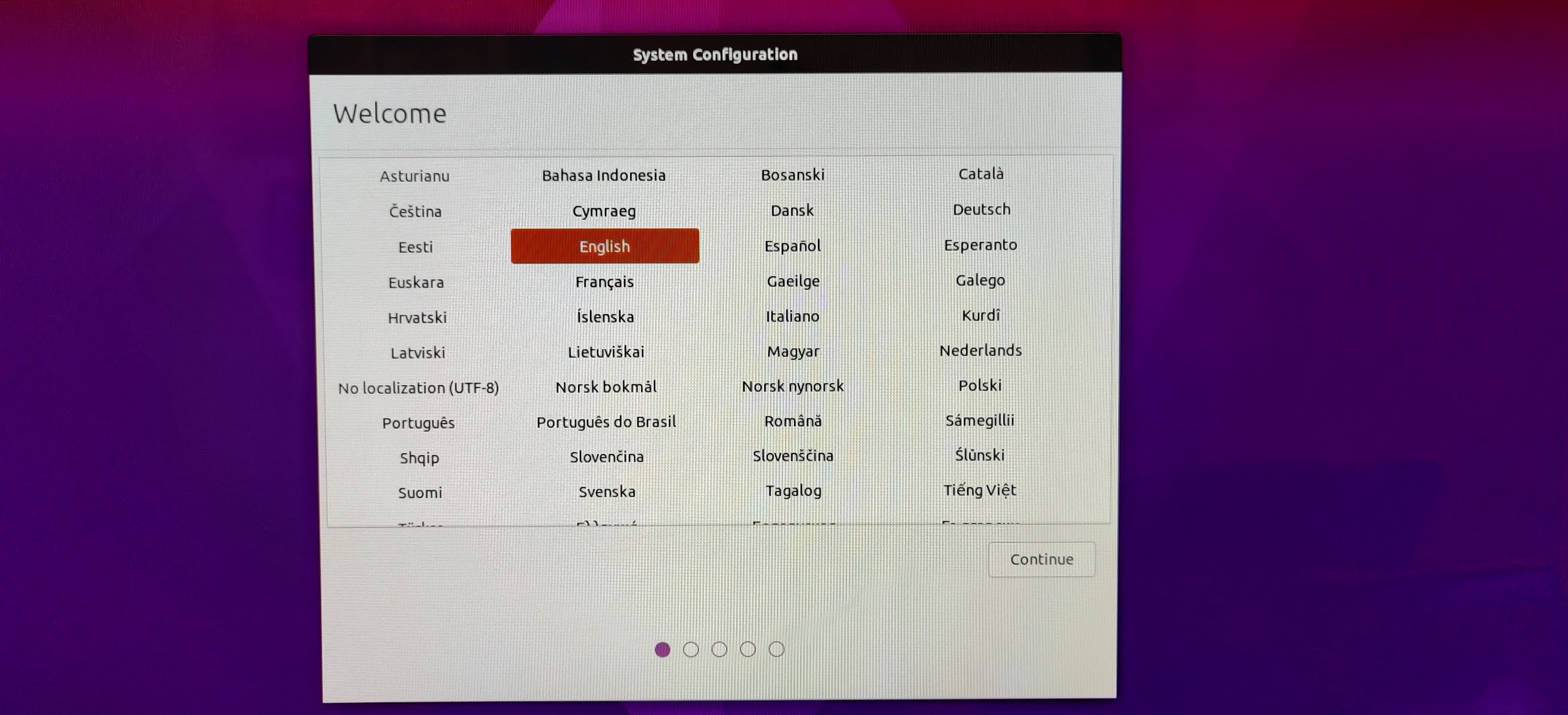
First screen is the language selection screen on which I choose English

-
Next I am presented with Keyboard layout selection screen. It recognized
English (US) layout correctly

-
On Wireless screen I connected to my WiFi by providing it credentials
when asked

-
On Timezone screen it correctly located me in New York i.e. Eastern time
zone

- Provided a user and password to use to login

-
Sat back and relaxed as installer did rest of it on its own. It took
about 5 minutes to complete the installation

- Now I am presented with a login screen

- Once logged in, voila! my desktop is fully functional



Now my Bluetooth headset connected without a hitch. I had to jump some
hoops to get Citrix workspace installed as I jotted down notes in Install Citrix Workspace on Raspberry Pi.
References:
Raspberry Pi is a great oportunity to learn electronics basics
ReplyDelete